# Python Auto Draw
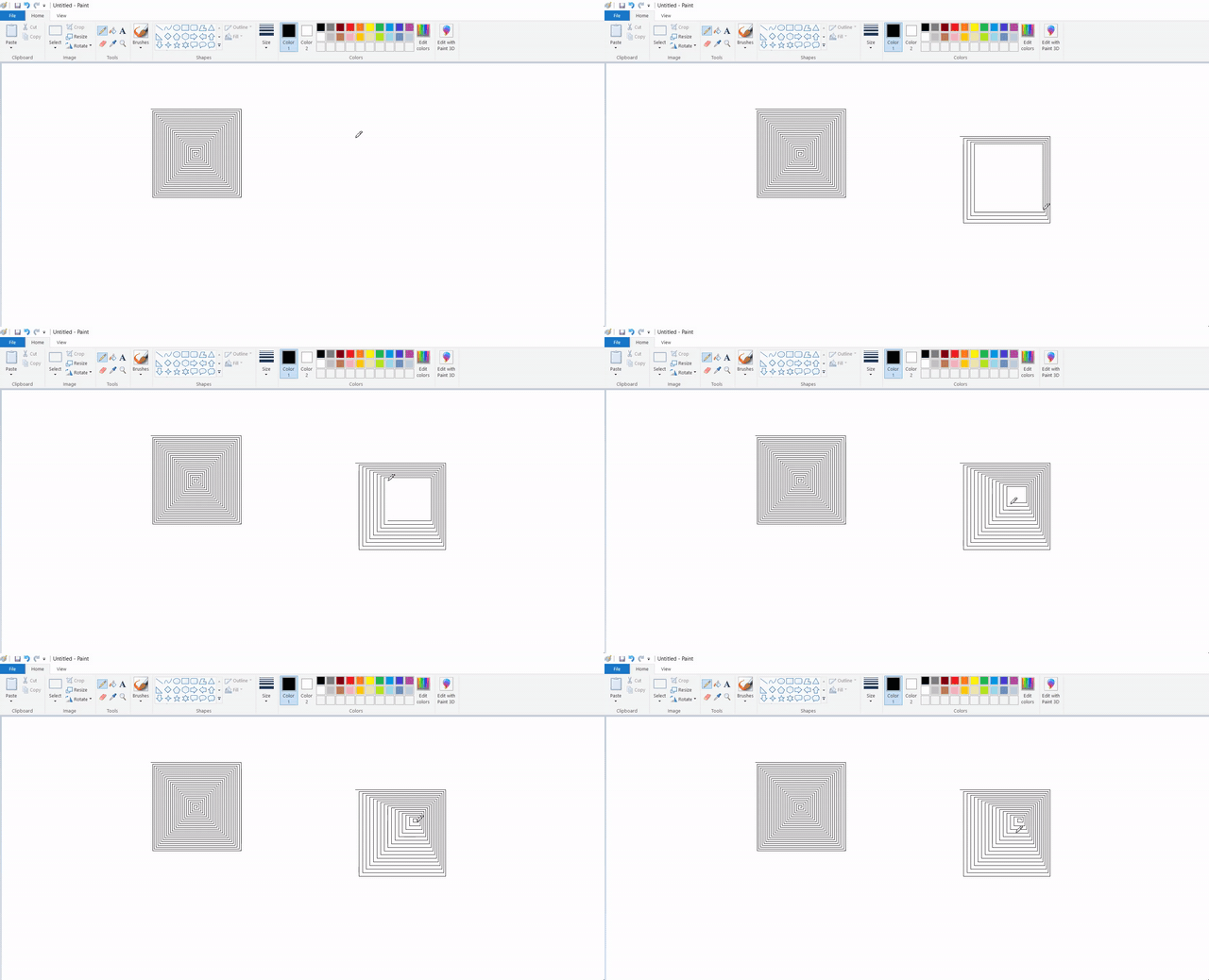
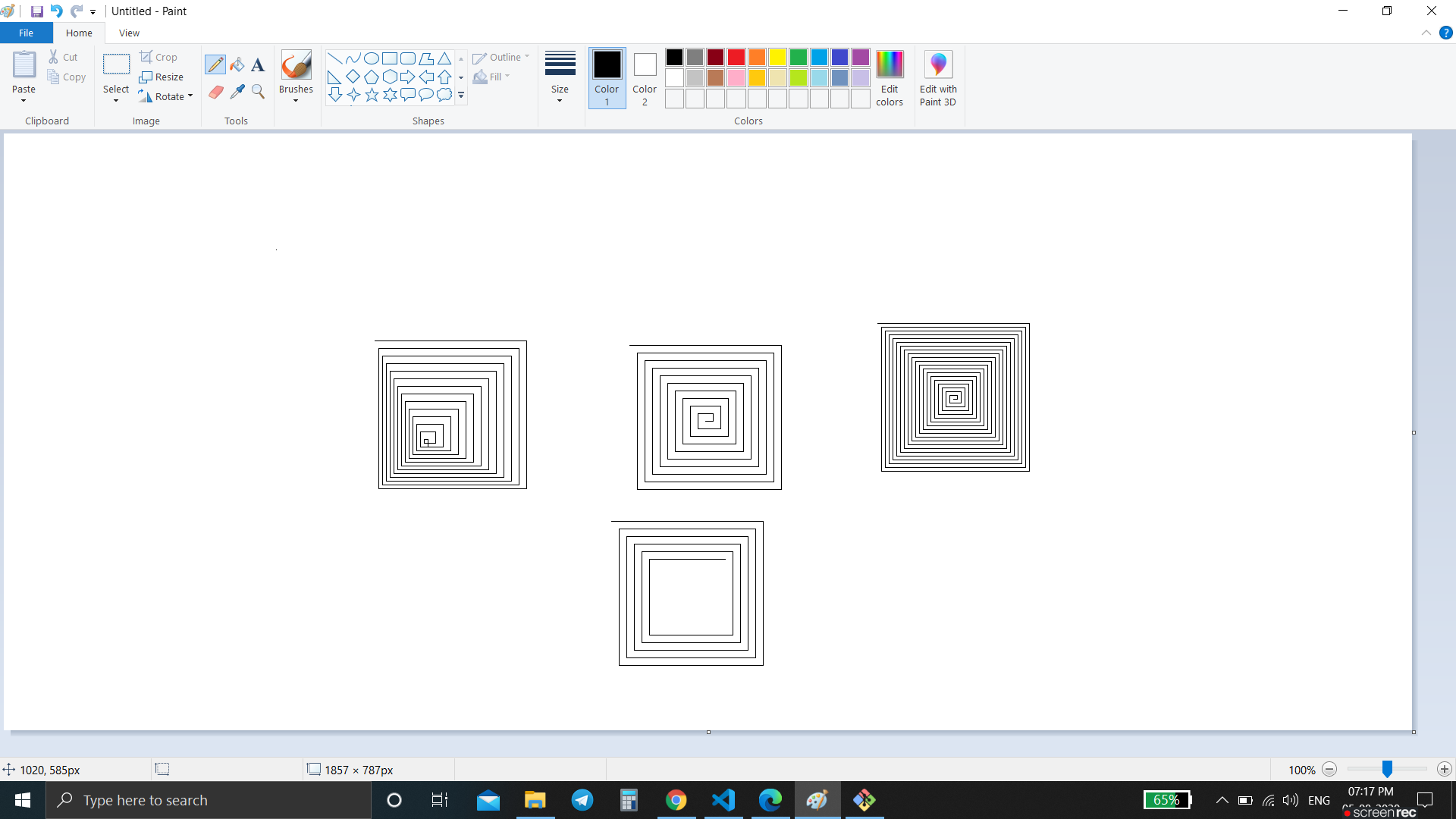
##### THIS SIMPLE PROJECT WAS MADE TO LEARN PYTHON LIBRARY FUNCTIONS LIKE `pyatogui` & `time`.
### *DEMO*:
### To run it on your PC:
* Make sure you have Python 3.7.x or Python 3.8.x installed, if not, click [here](https://www.python.org/downloads/) to install!
* Install PyAutoGUI: `pip install pyautogui`
* Clone this into your Desktop: `git clone "https://github.com/tusharnankani/PythonAutoDraw"`
* Open Command Line or Terminal
* Change directory to a respective game: `cd "Desktop\PythonAutoDraw"`
* Run: `python python-auto-draw.py`
### BASICS:
>>> import pyautogui
`>>> screenWidth, screenHeight = pyautogui.size()` # Get the size of the primary monitor.
`>>> currentMouseX, currentMouseY = pyautogui.position()` # Get the XY position of the mouse.
`>>> pyautogui.moveTo(100, 150)` # Move the mouse to XY coordinates.
`>>> pyautogui.click()` # Click the mouse.
`>>> pyautogui.click(100, 200)` # Move the mouse to XY coordinates and click it.
`>>> pyautogui.click('button.png')` # Find where button.png appears on the screen and click it.
`>>> pyautogui.move(0, 10)` # Move mouse 10 pixels down from its current position.
`>>> pyautogui.doubleClick()` # Double click the mouse.
`>>> pyautogui.moveTo(500, 500, duration=2, tween=pyautogui.easeInOutQuad)` # Use tweening/easing function to move mouse over 2 seconds.
`>>> pyautogui.write('Hello world!', interval=0.25)` # type with quarter-second pause in between each key
`>>> pyautogui.press('esc')` # Press the Esc key. All key names are in pyautogui.KEY_NAMES
`>>> pyautogui.keyDown('shift')` # Press the Shift key down and hold it.
`>>> pyautogui.press(['left', 'left', 'left', 'left'])` # Press the left arrow key 4 times.
`>>> pyautogui.keyUp('shift')` # Let go of the Shift key.
`>>> pyautogui.hotkey('ctrl', 'c')` # Press the Ctrl-C hotkey combination.
`>>> pyautogui.alert('This is the message to display.')` # Make an alert box appear and pause the program until OK is clicked.
## *REFERENCES*:
- [PyAutoGUI Docs](https://pypi.org/project/PyAutoGUI/)
- [More about PyAutoGUI](https://pyautogui.readthedocs.io/en/latest/mouse.html#mouse-drags)